Knowledge base

Everything explained in plain words.

No jargon, no assumed knowledge. Short, honest answers to the real questions people ask before and after they get their own AI assistant. We add to this as we go, so check back.

Knowledge base questions and answers

Getting started: servers and what you need

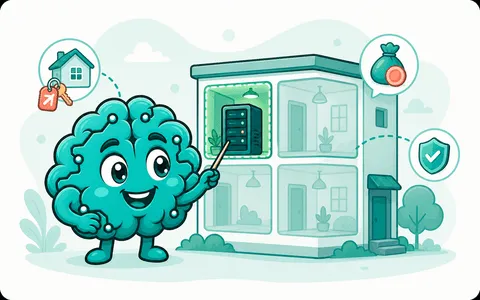
A friendly brain explaining a small rented server

What is a server, really?

A server is just a computer that stays on all the time so it can do its job while you get on with your day. Yours sits in a data center somewhere, plugged in, kept cool, with a fast internet connection, so your AI assistant is always there when you message it from your phone.

You will never touch it physically. You reach it through a web page in your browser, the same way you log into your email. Think of it as renting a small, quiet machine that stays awake on your behalf.

What is a VPS, and why do I need one?

A VPS is a small slice of a big computer that is yours alone. The letters stand for virtual private server, and the plain version is this: your own private space on a powerful machine, rented by the month. It behaves like a whole computer, and nobody else shares your part of it.

You need one because your AI assistant has to live somewhere that is always on. Your laptop sleeps, gets closed, and goes offline; a VPS does not. Renting your own means your passwords and conversations stay on your own server, not on ours. That is the whole point, and it is yours to keep.

How much does running a server cost?

You rent the small machine straight from the server provider, not from us, so you are always the owner and you can cancel any time. The amount is modest and you pay them directly.

Our own side is separate and simple. The command-center dashboard, health checks, and a one-tap restart are free to use right now. To see exactly what stays free and what the paid "keep-it-running" tier adds, like delivered alerts, encrypted backup, and automatic updates, have a look at our simple pricing page.

Which server provider should I pick?

We suggest Hostinger. We picked one provider on purpose so the whole setup is a single clear path: every instruction we give you matches what you see on their screens, with no guessing.

It is a normal company you pay by card, and the account stays fully yours. If you would rather talk it through with a real person before you sign up, just ask us; we are happy to. There is also a short walkthrough of the Hostinger steps in our how it works section.

Which plan should I choose, and why KVM 2?

Choose the plan called KVM 2. On Hostinger you will see a few plans side by side; KVM 2 is the one with enough room for your assistant to run comfortably, without paying for space you will not use.

The smaller plans are a little tight once the assistant is working, and the bigger ones are more than you need to start. KVM 2 sits comfortably in the middle. If you outgrow it later you can move up in a few clicks, but most people stay right here.

What is Ubuntu, and why version 24.04?

Ubuntu is the operating system your server runs, the way a laptop runs Windows or macOS. It is free, widely trusted, and the one our setup is built around. When the provider asks which system to install, you pick it from a menu; you do not download anything yourself.

Choose version Ubuntu 24.04. It is a long-support release, which simply means it keeps getting security updates for years, so your server stays current. Picking the same version we recommend is what lets your one-line setup command work first time.

Do I need to know Linux?

No. You do not need to know Linux, type commands, or understand anything technical underneath. If you can copy a line of text and paste it into a box, you can do this.

Here is the whole job: you make a free account at app.smarterbrain.ai (coming soon), it hands you one personal line to copy, and you paste it into the provider's Terminal window. The assistant installs itself from there. After that, you live in a friendly dashboard and chat to your assistant from your phone, with no commands ever again.

What do I actually need before I start?

Three small things: a card to pay for the server, an email address, and about fifteen quiet minutes. That is the full list.

You do not need any software installed, any special skills, or any private logins handed to anyone. When you are ready, you create a free account, it gives you a one-line command with a short-lived pairing code, and you paste it into the provider's Terminal, which signs you in by itself with no password to type. If you like to read ahead, the steps are laid out in our how it works section.

Can I use a computer or server I already have?

For your first setup we suggest a fresh Hostinger KVM 2 with Ubuntu 24.04, because that exact pairing is what our one-line command is built and tested against. Starting clean means it works first time, with nothing left over from another project to trip it up.

An old laptop or a machine you already own can run this kind of software, but it needs to stay on day and night and reach the internet reliably, which most home computers are not set up to do. If you are weighing up something you already have, tell us what you've got and we will give you an honest answer. The final call is always yours.

Setup: your account and the one paste

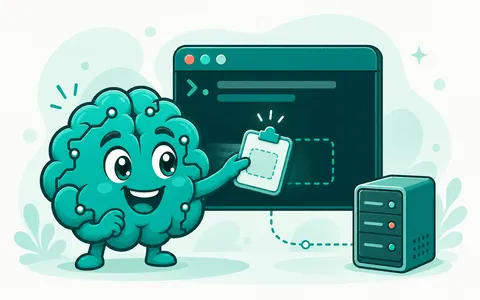
A friendly brain pasting the one-line setup command

How do I get started, step by step?

Three steps, and most people are done before their coffee cools. First, create a free account (coming soon). Second, rent a small server: we suggest Hostinger's KVM 2 plan with Ubuntu 24.04 (you can see what that costs on our simple pricing page). Third, your account hands you one personal line of text to paste into your server's web console, and the assistant installs itself.

You do not need to be technical for any of this. We walk you through each screen, and the how it works page shows exactly what you will see. If you would rather have a person beside you, ask us and we will help.

What is the pairing code, and how long does it last?

The pairing code is the short, personal part of the one line you paste. It tells your new assistant that it belongs to your account, so the two can find each other. You never type it by hand; it is already built into the command we give you.

It lasts about 10 minutes. That short window is on purpose: an old code left in a chat or a note cannot be used later. If yours runs out before you paste it, no harm done. Open your dashboard and it will hand you a fresh one.

Where exactly do I paste the command?

You paste it into your server provider's own web console, in your browser. On Hostinger that button is called Terminal, and it sits right on your server's page once you are signed in to Hostinger.

The nice part: that Terminal signs you in by itself, so there is no password to find or type. It opens a black window, you paste the one line, you press Enter. That is the whole thing. The Hostinger walkthrough shows the exact button so you know you are in the right place.

What does the setup command actually do?

It installs your AI assistant onto your own server and connects it to your dashboard so you can keep an eye on it. One line, and it handles the rest itself.

Here is the part that matters most: your server password and your AI login go straight from your own device to your own server. They never reach smarterbrain.ai. What we end up holding is one permission you can switch off in a single click, which lets us check your assistant's health and offer you one-tap helpers. We never hold your root login, never your private logins, never your AI login. You can read the full boundary on the privacy page.

How long does setup take?

A few minutes. Making the free account and renting the server are the slower parts, and even those are short. The paste-and-install step itself is quick and runs on its own once you press Enter.

You do not have to sit and watch every line. When it finishes, your dashboard lights up and your assistant is ready to talk. If anything stalls, the screen tells you in plain words what to do next.

Do I have to type any Linux commands myself?

No. You paste one line that we wrote for you, and you press Enter. That is the only command in the whole setup, and you do not have to understand it or remember it.

After that, everything lives in your dashboard, where it is buttons and plain English, not a black window. We built this for people who do not think of themselves as techy, so if a normal person would not say a word out loud, you will not have to type it either.

What if the paste does not work or I see an error?

First, the easy fix: if some time has passed, your pairing code may have run out. Open your dashboard, grab a fresh command, and paste it again. That clears up most hiccups on its own.

Also double-check you are in the server provider's Terminal window and that you pasted the whole line in one go. If it still will not budge, copy whatever the screen shows and send it to us. A real person will read it and walk you through it; you are not expected to decode an error message by yourself.

Can I set up more than one assistant?

Yes. Each assistant runs on its own small server that you own, and each one gets its own one-line command from your account. Rent a second server, paste a fresh command, and it appears in your dashboard alongside the first.

One thing to keep in mind: a single server runs one assistant (either Hermes or OpenClaw, not both at once). So a second assistant means a second server. Each one bills separately on your provider; see our simple pricing for what keeping an eye on them costs.

What happens right after it is installed?

Your dashboard becomes your command center, and you can start chatting with your assistant from your phone. That is the everyday way you use it: you talk to it, it answers.

On the paid tier, we also keep an eye on its health in plain words: whether the disk is filling up, whether security updates are falling behind, whether your AI plan is nearing its limit. We warn you early, while nothing is broken yet, and put the one button that handles it right next to the warning. The final call is always yours, and you can switch off our one permission anytime from the dashboard. You can see what that tier includes on our simple pricing page.

Your AI assistant

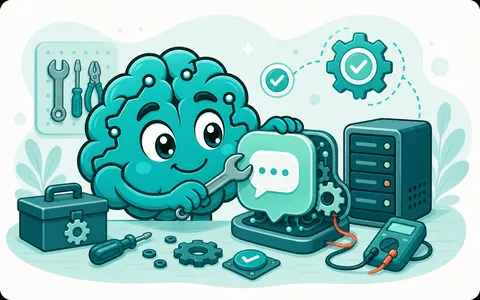
A friendly brain tuning an AI assistant in a workshop

What is an AI assistant, in plain words?

It is a smart helper you can talk to in everyday language. You ask it something, in plain words, and it answers, drafts, plans, or looks things up for you. Think of the chat assistants you may have tried online, except this one is yours, running on a small computer you rent and own.

You do not need to be techy to use it. You type a question the way you would text a friend, and it replies. We help you get it set up and watch that it stays healthy; what you say to it stays between you and your own server.

What are Hermes and OpenClaw?

Hermes and OpenClaw are the two open pieces of software that run your assistant. People call this kind of software a harness: it is the engine under the hood that takes your question, talks to the AI, and sends the answer back to you. You run one of them, on your own server.

You do not install either one by hand, so there is nothing technical to figure out. After you create your free account (coming soon), you paste one line into your server's web console and the harness sets itself up. We help with that and keep an eye on its health; we do not hold your private logins.

Which harness should I choose?

If you are not sure, choose Hermes. It is the simpler, steadier starting point for most people, and you can change later, so this is a low-stakes pick.

The short of it: both run a capable assistant; OpenClaw leans a little more hands-on, Hermes leans toward quiet and out of your way. Pick Hermes today, use your assistant, and if you ever want the other one we will walk you through the switch. Want to talk it through with a person first? Ask us.

How do I talk to my assistant?

From your phone, over Telegram. Your assistant lives in a chat, just like a friend, so you message it and it messages back. There is no app to learn and no commands to memorize: you write what you want in plain language.

You also have a web command center, the dashboard, where you can see that everything is healthy and tap one button to fix the odd hiccup. On the free tier you can read your assistant's alerts there; having those alerts delivered straight to your Telegram is part of the paid keep-it-running tier. You can see what each tier includes on our simple pricing.

What can my assistant actually do for me?

The everyday stuff you would ask a sharp helper: answer questions, explain things in plain words, draft and rewrite emails or messages, sum up a long document, brainstorm, plan a trip or a week, and think a problem through with you. You ask, it helps; the more clearly you ask, the better it answers.

It is an advisor, not a boss. It will not log into your bank or take over your accounts, and the final call is always yours. What you say to it stays on your own server, not ours.

What is an AI model, and which can I use?

The model is the actual brain doing the thinking. Your harness is the engine; the model is what sits inside it and writes the answers. Newer or larger models tend to be cleverer and a little more expensive to run, and they all speak the same plain language you do.

You can use the well-known models from OpenAI (the ones behind ChatGPT) or from Anthropic (the Claude family). You sign in to one of those with your own login, and that login goes from your device to your own server only; it never reaches us. If you are unsure which to start with, pick one of the standard options and try a few questions; you can swap to another anytime.

What is an AI plan limit, and what happens when I hit it?

Your AI login comes with an allowance: how much thinking you can use in a given month, or how much you have topped up. That is the plan limit, and it is set by OpenAI or Anthropic, not by us. When you reach it, your assistant simply pauses its answers until the allowance resets or you add a little more.

Nothing is broken when this happens. Your assistant watches for the limit getting close and warns you early, with the one thing to do next, so it is a heads-up rather than a surprise. Having those warnings delivered to your Telegram is part of the paid keep-it-running tier; you can see what each tier includes on our simple pricing.

Do I need my own OpenAI or Anthropic login?

Yes, and that is on purpose. The assistant thinks by talking to a model from OpenAI or Anthropic, so you sign in to one of them with your own login. We do not resell you ours and we do not sit in the middle of it.

Here is the boundary as a plain fact: that login goes from your device to your own server, and it never reaches smarterbrain. The most we ever hold is one small permission you can switch off in a click, which lets us check health and offer a one-tap helper; never your server password, never your AI login. There is more on the privacy page.

Can I change my mind about the harness or model later?

Yes, anytime, and nothing is locked in. The model is the easy one: switch from one to another whenever you like, and your assistant just uses the new brain on your next message. Changing the whole harness, say Hermes to OpenClaw, is a bigger step, but it is a normal one and we will walk you through it.

It is your server and your call, so start with whatever feels right and adjust as you go. If you would rather have a person help you make the change, just ask us.

Privacy, trust, and the one permission

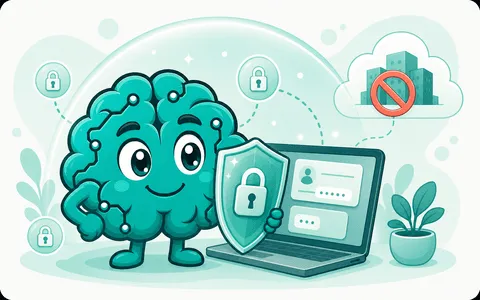
A friendly brain guarding your private logins

Where do my passwords and logins actually live?

On your own server and your own device, and nowhere else. When you set things up, you paste one command into your server provider's web console. That console signs you in by itself, so you never even type your server password. Your AI login goes from your device straight to your server too.

Here is the part that matters: none of that ever travels to smarterbrain. Your passwords and conversations stay with you. We could not fetch them if we tried, because they were never sent to us. You can see exactly how the one-command setup works in how it works.

What exactly can smarterbrain see?

We see the health of your server in plain terms, and that is all. Things like: the disk is getting full, security updates are falling behind, your AI plan is close to its limit. We watch those so we can tell you early, while nothing is broken yet, and hand you the one click that sorts it out.

We do not see your passwords, your private logins, or what is inside your conversations. The window we have is a small health window, not a window into your life. You can read the boundary spelled out in the privacy section of the home page.

What is the one permission you hold?

It is one permission you can switch off: small, and it does two things. It lets us check that your server is healthy, and offer you one-tap helpers like a quick restart. That is the whole job it does.

It is never your root login, never the private logins that connect to your server, and never your AI login. It is one narrow pass, not a master pass. And it is yours to cancel: one click in your dashboard switches it off, any time, with no call to us. The next question shows you how.

How do I switch you off?

One click in your dashboard turns off the one permission we hold. The moment you do, our health window closes and we can no longer check in on your server. No email, no waiting, no asking us first.

Your assistant keeps running on your own server exactly as before, because it lives there, not with us. If you ever want our help again later, you can turn the permission back on just as easily. And if something feels off, you can always talk to a real person first.

Can you read my conversations?

No. Your conversations happen between you and your assistant, on your own server, and we are not in that room. The one permission we hold is for server health, not for reading what you and your assistant say to each other.

You chat with your assistant straight from your phone, through Telegram, and those messages flow through your server, not through us. Your passwords and conversations are yours. Treat that as a fact you can check, not a promise you have to take on faith.

Do you ever sell or share my data?

No, and the honest reason is simple: we mostly do not hold your data to begin with. Your passwords, your logins, and your conversations never reach us, so there is nothing of that kind for us to sell or share.

If you choose the paid keep-it-running plan with encrypted backup, it is locked with one password that only you keep, so we can never read inside it. The way we make a living is a small recurring fee for keeping watch, not your information. You can see how that works on our simple pricing.

Is my server really mine?

Yes, completely. You rent the small server yourself, in your own name, from a provider like Hostinger. The bill is yours, the login is yours, and you can move, pause, or close it whenever you decide. We are never in the middle of that.

Our role is to set your assistant up on it and keep watch over its health. Think of us as a friend who helped you get started and checks in. The final call on your server is always yours. Here is the server we recommend and why.

What is a capability token, in plain words?

It is the plain name for that one permission we hold. Picture a single visitor pass that opens one small door, the health-check door, and no other. It cannot open your root login, your private logins, or your AI login, because it was only ever cut for that one door.

Two things make it safe: it is narrow, so it can only do the small job it was made for, and you can cancel it in one click whenever you like. Narrow, and yours to switch off: that is the whole idea.

What can you not do, and why is that a good thing?

We cannot log in to your server as you, we cannot read your conversations, and we cannot start changing things on our own. We watch, we tell you early, and we offer you the one click that fixes the thing; the final call is always yours.

That is good for you on purpose. Because we hold so little, there is very little for anyone to misuse, and you stay the owner of every decision. We guide and keep watch; we are not your security team, and we cannot be liable for a break-in or an outage, so keeping your own backups is still wise. If you would rather ask a human, reach out any time.

Keeping it healthy

A friendly brain tending a healthy server

What do you keep an eye on for me?

Three plain signals: whether your disk is filling up, whether security updates are falling behind, and whether your AI plan is getting close to its limit. These are the things that quietly cause trouble before anyone notices, so we watch them for you and put the result in your dashboard in words a normal person can read.

We watch through one permission you can switch off in one click, anytime. It lets us check health and offer you a helper button; it is never your main server login, never your private logins, never your AI login. We focus on these three because they cover almost every "why did my assistant stop?" before it ever happens.

How will I hear from you when something needs you?

To start, every alert is stored and shown on your dashboard, so when you open it you see exactly what is going on and the one button that handles it. Nothing is hidden in a long log you have to dig through; it is written in plain words at the top.

On the paid keep-it-running tier, those same alerts also come straight to you on Telegram, so you do not have to remember to check. Either way the message reads like a heads-up, not an alarm: it tells you what we noticed and the single click that sorts it.

What is a security update, and do I have to do it?

A security update is a small fix the makers of the software release when they close a hole that could let a stranger in. Installing it keeps your passwords and conversations on your own server safe. It is like fixing the lock on a door that has a known weak spot.

You do need to apply them, but you do not need to know how. When one is waiting, we show it on your dashboard with a button that applies it for you. On the paid keep-it-running tier we can apply them automatically, so they never fall behind. The final call is always yours; we only guide and warn.

What happens if my disk fills up?

We warn you early, while there is still plenty of room and nothing is broken yet. A full disk is one of the few things that can make your assistant stop working, so we flag it long before it gets there and show you the click that frees up space.

If you would rather understand it first, the dashboard says in plain words what is taking up room. You decide what to clear; we just point at it and hand you the button. The idea is that you never get the nasty surprise of a server that quietly ran out of space overnight.

Why might my assistant suddenly go quiet?

Usually it is one of three ordinary things: the disk filled up, the software needs a restart, or your AI plan hit its monthly limit. None of them is a disaster, and all three are exactly what we watch for, so the cause is normally already waiting for you on your dashboard in plain words.

From there it is one click. If it is a restart, that is the one-tap restart button. If it is the plan limit, the dashboard tells you so you can top it up. If you are stuck, you can always ask a real person.

What is the one-tap restart?

It is a single button on your dashboard that safely restarts the part of your assistant that handles messages, called the gateway. When your assistant has gone quiet for no obvious reason, a restart is the calm, ordinary first thing to try, and this gives you that without touching the server yourself.

It is safe to press: it does not change or delete anything, and you can press it again if you need to. It is there to start with, alongside your dashboard and health monitoring, so you have it from your very first day.

Do you ever change things on my server without asking?

No. We watch, we warn, and we offer you a button, but the final call is always yours. The action only happens when you press it. We never take over your server and never make changes behind your back.

This is a checkable fact, not a mood. We hold exactly one permission you can switch off in one click, from your dashboard, at any time. It lets us check health and offer helpers; it is never your main server login, never your private logins, never your AI login. The automatic security updates on the paid tier are the one thing you switch on yourself, on purpose, and can switch off again the same way.

How do automatic updates work?

Automatic security updates are part of the paid keep-it-running tier, which is coming soon. When you turn them on, security fixes will be applied for you as they come out, so they never quietly fall behind, and each one will be recorded and shown, with the heads-up delivered to you on Telegram too.

It is something you choose, not something we impose. You switch it on when you are ready, and you can switch back to doing updates by hand, with a button, whenever you like. To start, updates are manual: we show you what is waiting, and you apply it with one click.

What happens if my server has a problem overnight?

Because we watch the three signals that usually cause trouble, most problems are flagged early, before they ever wake you. If something does crop up while you sleep, it is recorded the moment we see it, so it is waiting clearly on your dashboard when you open it, with the one click that handles it.

On the paid keep-it-running tier, coming soon, the alert will also reach you on Telegram, and an encrypted backup only you can read will mean a bad night is recoverable, not a catastrophe. We will be honest about the limit: your server is yours, so we cannot promise an outage never happens. What we can do is make sure you are never the last to know, and never alone fixing it; a real person is one message away on our contact page.

Backups, safety, and getting help

A friendly brain packing an encrypted backup

What is an encrypted backup, in plain words?

An encrypted backup is a copy of your assistant's data, locked inside a sealed box that only your password can open. If your server ever has a bad day, you have a clean copy to restore from, and nobody can look inside it along the way.

You pick one password and you keep it. We will store the locked box for you, but the box stays shut on our end; we never have the password that opens it. So your backup stays a sealed copy, and its contents stay yours alone.

Encrypted backup is part of the paid keep-it-running tier, coming soon. You can see what is included on our simple pricing.

Who can read my backup?

Only you. Your backup is locked with one password that you choose and keep on your own device. We hold the locked copy, but we cannot open it, because we never have that password.

This is the same boundary that runs through everything we do: your passwords and conversations stay on your own server, and the one permission you give us cannot reach inside your backup. If you ever lose the password, even we cannot recover what is inside, so write it down somewhere safe. More on how we draw these lines is on the privacy page.

How do I restore from a backup?

You restore from your dashboard, and your assistant does the work of unpacking the latest good copy back onto your server. You point at the copy you want and confirm; that is the whole job.

You will be asked for the one password that unlocks your backup, because the copy stays sealed until you open it. Keep that password handy and a restore is a couple of clicks, nothing to dread.

If a restore ever looks stuck or you are not sure which copy to choose, you do not have to guess. Reach a real person on the contact page and we will walk through it with you.

What happens to my backup if I stop using smarterbrain?

It stays yours. The backup belongs to you because only your password opens it, so leaving us does not hand anyone else a way in.

While you are on the paid tier we keep the locked copy for you. If you cancel, that stored copy winds down, so download a fresh restore copy before you leave if you want one in hand. Your server, your assistant, and your own backups all stay exactly where they are; we only ever looked after the spare copy.

How do I spot a scam email or pop-up?

The simple test: a real message from us never asks for your server password, your AI's private login, or the password that unlocks your backup. We do not have those and never will, so anyone asking for them is not us.

Be wary of anything that rushes you, threatens to close your account in minutes, or sends you to a web address that is not smarterbrain.ai. When in doubt, do not click the link in the message; come straight to your dashboard or this site instead and check from there.

If a message claims to be from us and you are unsure, forward it to us through the contact page and we will tell you whether it is real.

Is it safe to paste a command from the internet?

Treat a stranger's command the way you would treat a stranger's pill: do not swallow it just because it is offered. A pasted command runs with real power on your server, so the only ones worth running are the ones from a source you trust.

The one command we give you is different in two checkable ways. It comes from your own account at app.smarterbrain.ai, and it carries a pairing code that is yours alone and expires in about ten minutes. You can read it before you run it; it installs your assistant and nothing else. If a command did not come from your own dashboard, do not paste it.

Want to see exactly how the setup command works before you start? It is laid out step by step in how it works.

What should I do if something looks wrong?

Start at your dashboard. It watches your server's health in plain words and usually flags trouble early, while nothing is broken yet: the disk filling up, security updates falling behind, your AI plan nearing its limit. Most warnings come with one button that handles the thing.

If the dashboard does not have a button for what you are seeing, you can use the one-tap restart, which clears a surprising number of hiccups on its own. The final call is always yours; we guide and warn, we never reach in and change your server without you.

Still uneasy? That is a fine reason to ask. A real person is one message away on the contact page.

How do I get help from a real person?

Write to us on the contact page and a real person reads it and writes back. No phone menus, no being made to feel slow for asking.

It helps to tell us what you saw and what you expected to happen; a screenshot of the dashboard warning is plenty. You never need to send us a password to get help, and we will never ask for one. If you just want to learn your way around first, the knowledge base covers the common questions in the same plain language.

What does it cost, and what is free?

The command-center dashboard is free to use right now: health monitoring with alerts shown to you, a one-tap restart, and manual updates whenever you want them. You can create your account and start at app.smarterbrain.ai (coming soon) without paying us anything.

The paid keep-it-running tier adds the parts that look after you while you are busy: alerts delivered to your phone on Telegram, an encrypted backup only you can read, and automatic security updates. You can see exactly what sits in each tier on our simple pricing.

One cost is not ours: the small server you rent and own, which you pay the provider for directly. We never touch that bill; it stays between you and your provider.

Set up your own AI assistant, for free

Create your account, get your personal setup command, and check that we can see your server before you decide what to turn on next.

Create your account Soon